
We want to share with you a complete reference guide for the shortcodes included in the WooCommerce Product Restrictions by Location plugin.
While our other tutorials show you how to restrict entire products, hide prices, or remove the add to cart button, sometimes you just need to hide or show a specific sentence, a promotional banner, or a custom warning message inside a page based on the user’s location. For this, the plugin includes three powerful shortcodes.
In this guide, we will explain exactly how they work and all the parameters you can use.
1- Install “WooCommerce Product Restrictions by Location”
To use these shortcodes, you first need to have the plugin installed and active on your site. The plugin allows you to restrict products by country, continent, state, province, zip code, or custom location.
You can download the plugin here:
Download WooCommerce Product Restrictions by Store Location Plugin - or - Read more
2- The [wcprbl_location] shortcode
This is the main restriction shortcode. It allows you to wrap any text, image, or HTML and decide who gets to see it based on their IP address geolocation. It comes with three parameters:
- locations: This is where you add your location codes (like FR, IT, JP, or custom regions) separated by commas.
- disallowed: By default, this is set to false (meaning the text is shown to the locations you selected). If you change it to true, the text will be hidden from those locations and shown to everyone else.
- show_if_unknown_location: Sometimes, a user’s location cannot be detected. By default, this is set to true so the content still displays. You can set it to false to strictly hide the content if the location is unknown.
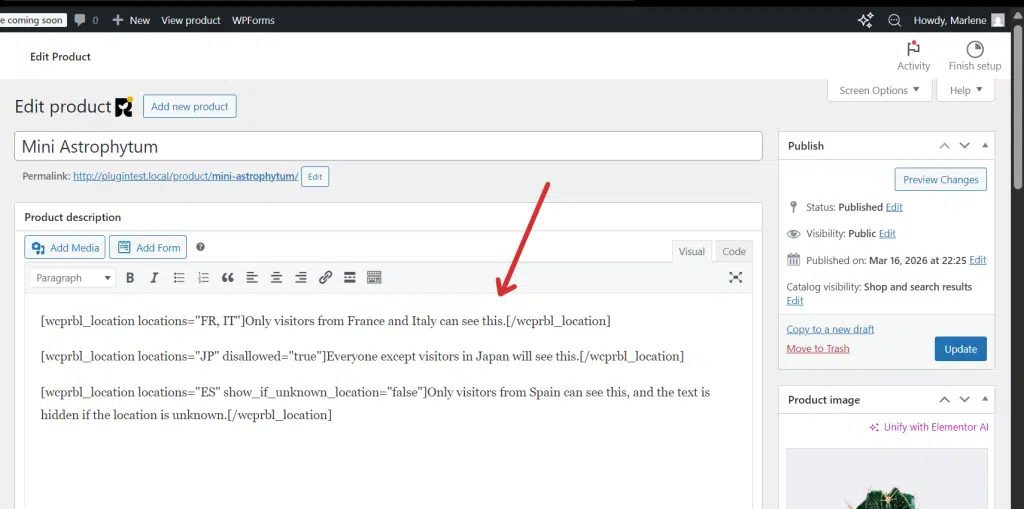
Example 1: Show text only to specific locations
[wcprbl_location locations="FR, IT"]Only visitors from France and Italy can see this.[/wcprbl_location]Example 2: Hide text from specific locations
[wcprbl_location locations="JP" disallowed="true"]Everyone except visitors in Japan will see this.[/wcprbl_location]3- The [wcprbl_location_restricted] shortcode
This dynamic shortcode checks the current product or post the user is viewing. It will only show the content if the product is restricted for the user’s current location based on your plugin settings.
This is incredibly useful for adding custom warning messages on products that a user cannot buy.
- show_if_unknown_location: Like the main shortcode, you can set this to false if you want to be strict when a user’s location fails to load. (Defaults to true).
Example:
[wcprbl_location_restricted]We are sorry, but this specific product cannot be shipped to your current location.[/wcprbl_location_restricted]This is what the product page will look like in the frontend:
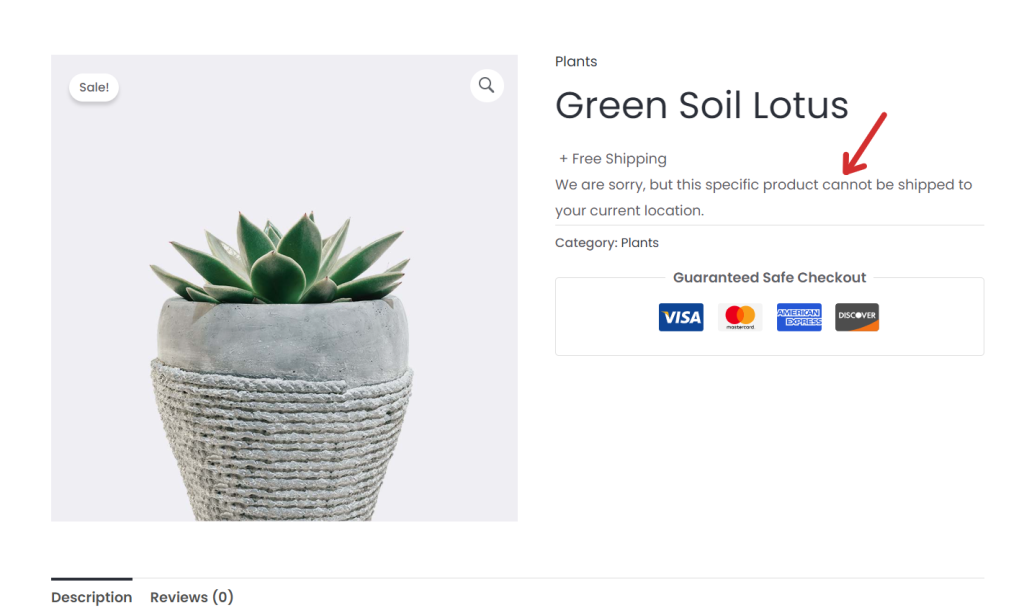
4- The [wcprbl_location_allowed] shortcode
This shortcode is the exact opposite of the previous one. It dynamically checks the current product or post, and will only show the content if the product is allowed (available) for the user’s current location.
- show_if_unknown_location: You can set this to false to be strict when the location is unknown. (Defaults to true).
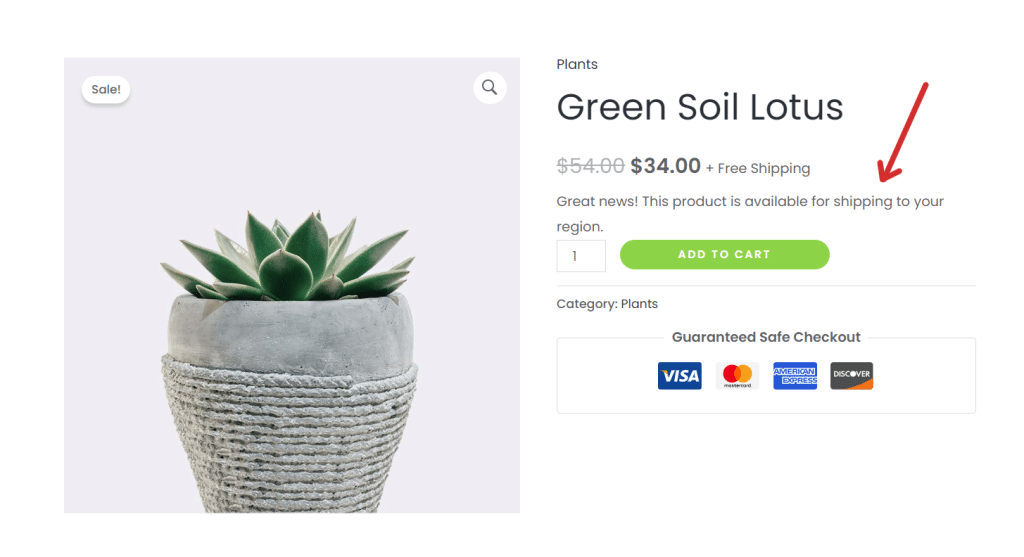
Example:
[wcprbl_location_allowed]Great news! This product is available for shipping to your region.[/wcprbl_location_allowed]Important Note for SEO
Our plugin automatically detects search engine bots (like Google crawlers and spiders). If a bot visits your page, all three of these shortcodes will automatically bypass the location restrictions and allow the bot to read the content. This ensures your SEO is never negatively affected by your geolocation rules!
By using these shortcodes and parameters, you have full dynamic control over what parts of your content are visible based on location. Start using WooCommerce Product Restrictions by Location.
You can download the plugin here:
Download WooCommerce Product Restrictions by Store Location Plugin - or - Read more